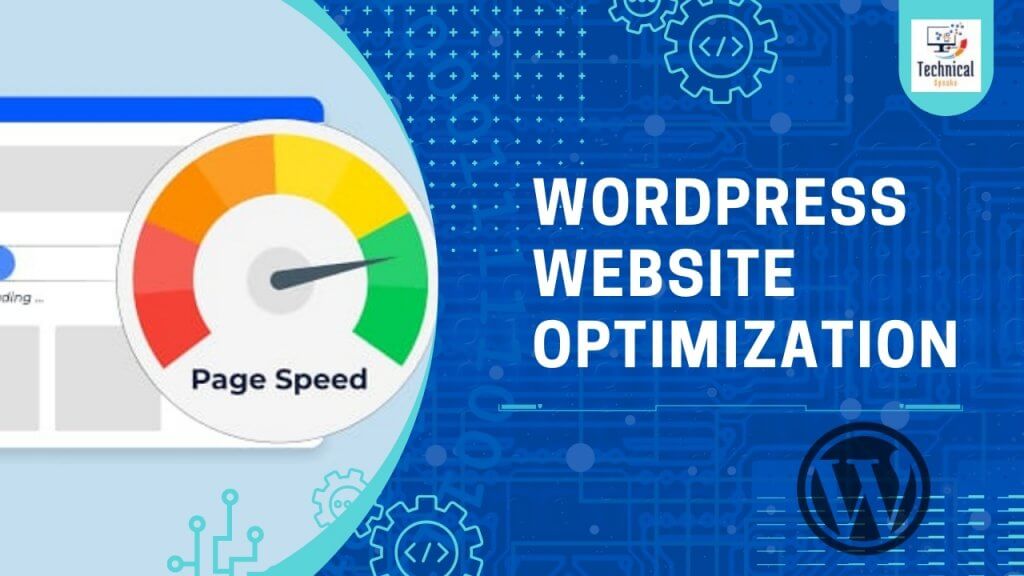
Website speed is no longer a luxury—it is a fundamental requirement for online success. In 2026, Google’s algorithm relies heavily on Core Web Vitals and real-user data (CrUX) to determine rankings. For WordPress users, optimizing performance is critical for user retention, conversion rates, and search visibility.
This guide provides a step-by-step roadmap to improve your WordPress load times dramatically. We cover everything from selecting the right infrastructure to implementing advanced performance hacks.
Why Does Website Speed Matter in 2026?
User Experience (UX): 53% of mobile users abandon sites that take longer than 3 seconds to load.
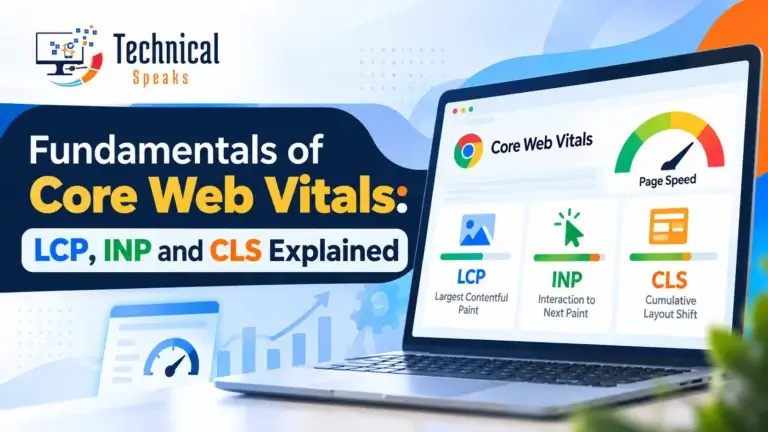
Core Web Vitals (SEO): Google uses LCP (Largest Contentful Paint), FID/INP (Interaction to Next Paint), and CLS (Cumulative Layout Shift) as direct ranking factors.
Conversion Rates: A 0.1-second improvement in mobile speed can increase conversion rates by up to 8.4%.
Mobile-First Indexing: With mobile traffic dominating, a fast mobile experience is non-negotiable.
12 Proven Ways to Speed Up WordPress (2026 Updates)
1. Upgrade to a High-Performance Host (Optimized for PHP 8.x)
Your hosting environment is the foundation of speed. Shared hosting often throttles resources, leading to slow TTFB (Time To First Byte).
The 2026 Standard: Choose a host that uses NVMe SSD storage (faster than SATA SSDs) and offers PHP 8.2 or 8.3 (which is 20-30% faster than PHP 7.4).
Recommendations: Managed WordPress hosts like Kinsta, WP Engine, or Cloudways (with Vultr HF) are optimized for high traffic. For budget-friendly options, consider Hostinger or SiteGround.
Pro Tip: Ensure your host offers a built-in Object Cache (like Redis) and a free CDN.
2. Choose a Lightweight, Block-Based Theme
Heavy themes with bloated code are a primary culprit for slow rendering.
Modern Standard: Use themes built for the Full Site Editing (FSE) experience, such as GeneratePress, Kadence, or Blocksy.
Action: Avoid “multipurpose” themes that include hundreds of unused shortcodes and scripts. Test the theme’s demo on Google PageSpeed Insights before installing.
3. Optimize Images with Next-Gen Formats
Images often account for 80% of a page’s weight.
Format Shift: Use WebP or AVIF formats. AVIF offers 50% better compression than JPEG without losing quality.
Tools: Use Imagify or ShortPixel for automatic compression during upload.
Responsive: Enable “srcset” so that mobile users receive smaller image sizes.
Lazy Loading: WordPress 6.x has built-in lazy loading, but pairing it with a3 Lazy Load gives you better control over animations and iframes.
4. Implement Full-Page Caching (with Dynamic Cache)
Caching reduces the server load by serving static versions of your dynamic pages.
The Best Plugins (2026): WP Rocket remains the gold standard for ease of use. For free options, LiteSpeed Cache (if using LiteSpeed servers) or W3 Total Cache (with its new Object Cache improvements) are excellent.
Server-Level Cache: If you are on Kinsta or WP Engine, their server-level caching is superior to plugin caching—use their proprietary solutions.
5. Minify and Combine CSS/JS (With “Eliminate Render-Blocking”)
Modern browsers handle resources differently.
Strategy: Minify CSS and JS (remove spaces) and combine files to reduce HTTP requests.
Critical CSS: Instead of loading all CSS, generate Critical CSS (CSS for above-the-fold content) to render the page instantly.
Tool: Autoptimize paired with Critical CSS Generator (or WP Rocket’s built-in feature) handles this efficiently.
6. Utilize a Global CDN with HTTP/3 Support
A CDN stores copies of your site on servers worldwide.
Modern Recommendation: Use Cloudflare (or Bunny.net) to ensure HTTP/3 support. This delivers a faster, more reliable connection using QUIC protocol.
Benefit: Reduces latency by 60% for international visitors.
7. Optimize Your Database (Post-Revisions & Autoload)
WordPress databases get bloated with post revisions, trashed comments, and transients.
Action: Use WP-Optimize to clean post revisions and spam comments.
Focus on “Autoload”: Large autoload data can slow down your admin and frontend. Use Advanced Database Cleaner to manage which items autoload.
8. Audit and Replace Bloated Plugins
Every active plugin adds to the site’s overhead.
Modern Approach: Use plugins that utilize JavaScript Deferral and Conditional Loading (only load plugins on specific pages).
Tool: Use Asset CleanUp to disable plugins on pages where they aren’t needed (e.g., disable a contact form plugin on your blog posts).
9. Enable GZIP or Brotli Compression
Compression reduces the size of HTML, CSS, and JS files sent to the browser.
The Shift: Brotli is now widely supported and compresses files 20-26% better than GZIP.
Action: Most caching plugins enable this automatically. For manual checks, use GTmetrix to see if compression is enabled.
10. Regular Performance Monitoring via Real User Monitoring (RUM)
You can’t improve what you don’t measure.
New Standards: Use Google PageSpeed Insights (lab data) but also WebPageTest.org (for waterfall analysis).
Crucial Update: Monitor Interaction to Next Paint (INP) replacing FID. This measures responsiveness to clicks and taps.
Tool: Use Query Monitor to identify heavy PHP scripts and database queries in real-time.
11. Keep Everything Updated
Outdated code is slow and vulnerable.
Security & Speed: Ensure WordPress Core, Themes, and Plugins are always updated. Updates often include performance patches (e.g., WordPress 6.5 improved performance for block themes by 15%).
12. Advanced Developer Hacks
For those comfortable with code, these are the 2026 power moves:
Host Fonts Locally: Stop relying on Google Fonts CDN (which can be blocked in some regions). Self-host your fonts to reduce DNS lookups.
Prefetch & Preconnect: Add
dns-prefetchandpreconnecttags for third-party resources (like Google Analytics or external embeds).Dynamic Image Resizing: Instead of uploading multiple versions, use server-side image resizing (like in Kinsta) or services like Cloudflare Images to generate optimized sizes on the fly.
Conclusion
Speeding up your WordPress site is an ongoing process, not a one-time fix. By focusing on Core Web Vitals, implementing Full-Page Caching, and optimizing Media Files, you can drastically improve your user experience and Google rankings.
Pro Tip: Run a speed test using Google PageSpeed Insights before and after implementing these steps. Aim for a score of 90+ on mobile to future-proof your site in the 2026 algorithm.
Frequently Asked Questions (FAQs)
Q1: What is the best caching plugin for WordPress in 2026?
A: WP Rocket is the best premium plugin for its simplicity. If you are on a budget, LiteSpeed Cache (for LiteSpeed servers) is unbeatable. For technical users, W3 Total Cache, with its new object-caching features, is a strong contender.
Q2: How can I check if my WordPress site meets Core Web Vitals?
A: The easiest way is to use Google PageSpeed Insights or the Chrome User Experience Report (CrUX). Look for the specific metrics:
LCP: < 2.5 seconds.
INP: < 200 milliseconds.
CLS: < 0.1.
Q3: Is shared hosting bad for WordPress speed?
A: Yes. Shared hosting tends to oversell resources, leading to unpredictable TTFB times. For e-commerce or high-traffic blogs, opt for VPS or Managed WordPress Hosting with dedicated CPU cycles.
Q4: Why is my WordPress admin backend slow?
A: This is usually caused by poorly coded admin plugins, heavy widgets (like social feeds), or a large database “autoload” size. Use the Query Monitor plugin to identify what is running heavy queries in the backend.
Q5: Should I use a page builder for speed optimization?
A: Page builders like Elementor and WPBakery add extra HTML markup which can slow down LCP. If you use one, ensure you have “CSS/JS File Loading” optimization enabled (Elementor now has a “Generate CSS inline” feature). Gutenberg (Block Editor) remains the fastest option.
Q6: What is the ideal image size for WordPress in 2026?
A: The “Full” size upload is usually too large. For page content, aim for 1200px to 1600px wide. Use the “Large” or “Medium” image sizes in the WordPress editor. Always compress using WebP/AVIF before uploading.
Q7: Does lazy loading affect Core Web Vitals?
A: Yes, in a good way! Lazy loading offscreen images helps improve LCP by prioritizing resources for the visible part of the page. WordPress has native lazy loading, but it is recommended to use a plugin to lazy load background images and iframes for better INP scores.