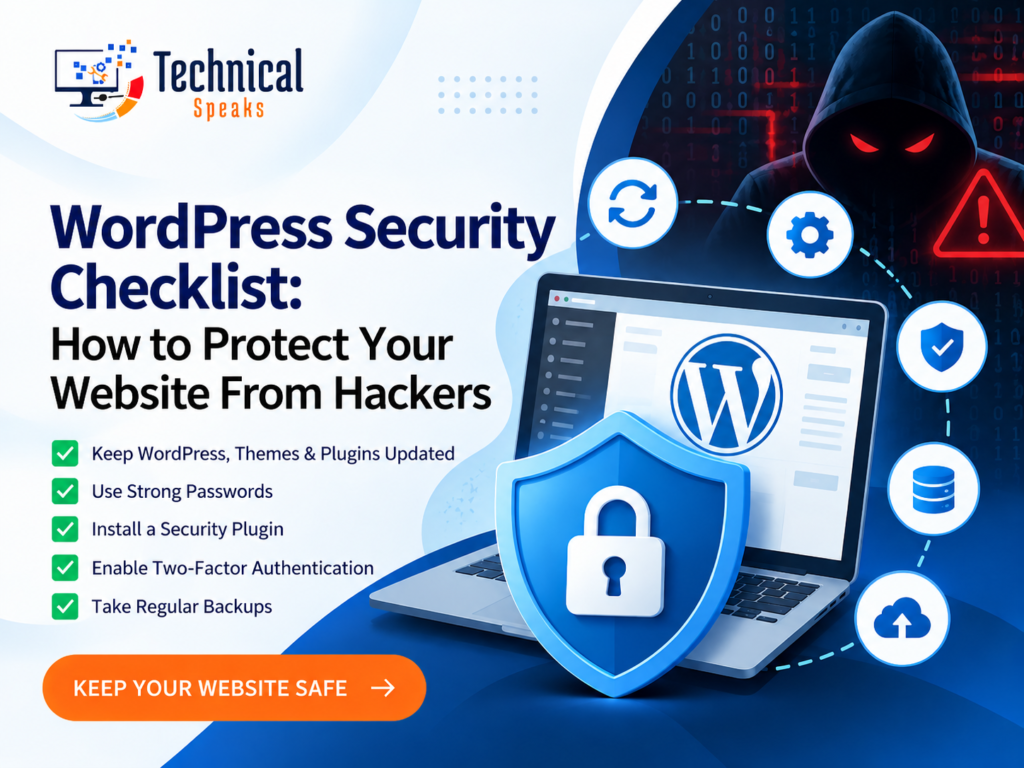
A complete WordPress security checklist is no longer optional—it is the baseline requirement for keeping your site online, your data intact, and your visitors safe. With WordPress powering over 40% of the web, it remains the single largest target for automated attacks, and the threat landscape in 2026 has become far more aggressive than most site owners realize. The uncomfortable truth is that most successful compromises do not involve sophisticated zero-day exploits. They happen because of missing security headers, outdated plugins, and a login page that accepts unlimited password guesses.
This guide breaks down a practical, prioritized WordPress security checklist you can implement today. We will cover the technical hardening steps, the tools worth paying for, and the common mistakes that leave even well-maintained sites exposed.
Why WordPress Security Matters More Than Ever in 2026
The numbers tell a stark story. Research from Patchstack’s 2026 State of WordPress Security report found that 91% of new WordPress vulnerabilities are in plugins, with only about 3% in themes and a negligible share in core. More alarmingly, the median time between a vulnerability being disclosed and the first mass exploitation attempt is now just five hours. Roughly half of high-impact vulnerabilities are exploited within 24 hours of disclosure, and 46% remain unpatched at the moment they become public. This highlights why regular WordPress maintenance is essential for keeping websites secure, updated, and protected against emerging threats.
A separate analysis of over 400 WordPress sites found that 93.2% are missing basic security headers, 54.7% have an exposed login page with no rate limiting or two-factor authentication, and 52.8% are running at least one plugin with a known vulnerability. These are not obscure edge cases. They are the default state of the modern WordPress web.
The takeaway is simple: manual update workflows alone cannot keep pace with five-hour exploitation windows. Your checklist needs automation, layered defenses, and a recovery plan that does not depend on hope.
The Essential WordPress Security Checklist
1. Use a Reputable Security Plugin
A WordPress security plugin consolidates login protection, malware scanning, firewall rules, and vulnerability alerts into a single dashboard. As part of the broader category of SEO plugins for WordPress, these tools can help improve website security and maintain a safer environment for search performance. Installing one is the fastest way to move from exposed to defensible. Established options include Wordfence, Solid Security, Sucuri Security, and MalCare.
The critical rule is to choose one primary security solution. Stacking multiple security plugins with overlapping controls causes conflicts, degrades performance, and creates blind spots. Configure the plugin properly rather than relying on defaults, and enable features like file-change monitoring and email alerts so you know when something changes.
2. Enforce Strong Authentication
Brute-force attacks remain one of the most common entry points because they are cheap and automated. The fix is layered:
Use unique, complex credentials. Never use “admin” as a username, and ensure every account has a unique password stored in a password manager .
Enable two-factor authentication (2FA). For administrator and privileged accounts, 2FA adds a verification step that a stolen password alone cannot bypass. Passkeys or WebAuthn offer even stronger phishing resistance .
Limit login attempts. After a small number of failed attempts, lock out the IP temporarily. This slows automated guessing dramatically .
Review user roles regularly. Every user should have only the access they need. A contributor does not need editor permissions, and an editor does not need administrator rights .
3. Install an SSL Certificate and Force HTTPS
An SSL certificate encrypts data between your site and visitors, protecting login credentials and form submissions in transit. Most hosts provide free Let’s Encrypt certificates.
Having a certificate is not enough. You must force HTTPS sitewide by updating the WordPress Address and Site Address in Settings > General to use https://, and adding a redirect so any HTTP request automatically goes to HTTPS . Check for mixed content issues where images or scripts still load over HTTP, as these undermine the encryption.
4. Harden Your Login Page and Sensitive Files
The default WordPress login URL is one of the most targeted endpoints on the internet . Beyond limiting attempts and enabling 2FA, consider hiding or changing the login URL to make automated discovery harder .
Disable file editing in the dashboard. Add define('DISALLOW_FILE_EDIT', true); to your wp-config.php file. This prevents an attacker who gains admin access from editing theme and plugin files directly through WordPress .
Disable XML-RPC if you do not need it. XML-RPC was designed for remote publishing, but it is now primarily exploited as a brute-force amplifier. A single XML-RPC request can attempt hundreds of credential combinations .
Restrict access to sensitive files. Protect wp-config.php with appropriate server permissions and restrict public access where your configuration allows .
5. Use a Web Application Firewall (WAF)
A WAF sits between your site and incoming traffic, inspecting requests against known attack patterns and blocking malicious traffic before it reaches WordPress . Many security plugins include a WAF, and hosting providers like Servebolt offer integrated firewall protection with Patchstack vulnerability intelligence .
It is important to understand what a WAF can and cannot do. Traditional WAFs block only about 12% of WordPress-specific attacks on their own . A WAF is a filter, not a scanner. It does not detect malware already on your site, and it cannot patch a vulnerability in a plugin. Use it as one layer, not the only layer.
6. Configure HTTP Security Headers
Security headers tell browsers how to handle your site’s content, turning the browser into an active participant in your defense. Research shows 93.2% of WordPress sites are missing these headers entirely .
The essential headers to implement include:
Content Security Policy (CSP): Tells the browser which domains are trusted to run scripts. This blocks injected scripts from executing, including credit-card skimmers .
X-Frame-Options: Prevents your site from being embedded in an iframe on another domain, blocking clickjacking attacks .
Strict-Transport-Security (HSTS): Forces the browser to use HTTPS even if a user types
http://, preventing downgrade attacks .X-Content-Type-Options: Set to
nosniffto stop the browser from guessing MIME types and executing disguised malicious files .
Security plugins like Shield Security and Really Simple Security can apply these headers without manual server configuration .
7. Maintain Rigorous Update Discipline
Outdated plugins and themes are the single largest source of WordPress vulnerabilities . The five-hour exploitation window means you cannot rely on manual review cycles .
Enable automatic updates for plugins and themes where compatibility allows. Use a staging environment to test updates before they go live if you run custom code or complex plugin stacks .
Remove unused plugins and themes entirely. Deactivated plugins still exist on your server and can still be exploited. Delete anything you are not actively using .
Avoid nulled or unverified plugins. Premium and freemium components account for a disproportionate share of exploitable vulnerabilities, and nulled versions often contain backdoors. Signature-based scanners frequently cannot see inside them .
8. Back Up Off-Site and Test Restores
Backups are not a security control, but they are the difference between a 20-minute recovery and a catastrophe. The key principles:
Store backups off-site. Backups on the same server as your site are a single point of failure. If the server is compromised, the backups are too .
Test your restores. A backup you have never restored is not a backup. Run a test restore periodically to confirm the process works .
Beware of malware in backups. If a site was compromised before a backup was taken, restoring from that backup re-infects the site. After any security incident, scan backups before restoring .
9. Monitor for Malware and File Changes
Continuous monitoring catches problems early. File integrity monitoring alerts you when core WordPress files change, which should never happen outside of an update .
Malware scanners look for injected scripts, hidden backdoors, and suspicious code patterns. In 2026, roughly 49% of compromised sites contain at least one backdoor, and cleaned files often reinfect within hours . After any cleanup, re-scan 24 to 48 hours later to confirm the malware has not respawned.
WordPress Security Pricing: What Protection Actually Costs
Security costs vary widely depending on whether you need basic plugin protection or full managed incident response. Here is what the market looks like in 2026.
| Product/Service | Price (Annual) | What You Get |
|---|---|---|
| WP Ghost | $29.99 – $147.20 | Security plugin with firewall, login hardening, and vulnerability alerts. Pricing scales by number of sites |
| WordSec Business | $89.90 | Unlimited firewall rules, malware detection, vulnerability alerts, and uptime monitoring |
| Wordfence Premium | $149/site | Full security plugin with firewall, malware scanning, and real-time threat defense. Volume discounts up to 25% |
| Sucuri Basic | $229/site | Firewall, malware scanning, and included malware cleanup. Each plan covers one site |
| Servebolt Shield | From €31/month | Patchstack vulnerability protection and global edge defense, available exclusively on Servebolt hosting |
| Wordfence Care | $590/site | Premium protection plus incident response and remediation support |
| Wordfence Response | $1,250/site | Full incident response with priority support for active compromises |
| WP Umbrella Security | $24/site | Patchstack-powered virtual patching and firewall as an add-on to WP Umbrella’s maintenance platform. Flat pricing at any scale |
How to choose: For a single site, Wordfence Premium or Sucuri Basic offer strong protection at reasonable cost. For agencies managing multiple sites, WP Umbrella’s $24/site flat pricing or Patchstack’s direct plans offer better economics at scale . If you need guaranteed incident response, Wordfence Care or Response provide human remediation support when things go wrong .
5 Frequently Asked Questions About WordPress Security
What is the single most important WordPress security step?
Keeping plugins and themes updated. Outdated software is the leading cause of WordPress compromises, and 91% of vulnerabilities live in plugins . Enable automatic updates where possible, remove unused plugins, and use virtual patching to protect against vulnerabilities before patches are applied .
Can I secure WordPress for free?
Yes, to a significant degree. Free security plugins like Wordfence Free and WordSec’s free tier provide firewall rules, malware scanning, login protection, and hardening features at no cost . Free SSL certificates are available from Let’s Encrypt through most hosts. The main tradeoffs are limits on rule counts and the absence of priority support or guaranteed incident response.
Do I really need a security plugin if my host provides security?
Hosting-level security protects the server infrastructure, but it does not address vulnerabilities inside your WordPress installation, your plugins, or your login page. A host may provide a WAF and backups, but you still need malware scanning, login hardening, and file integrity monitoring inside WordPress . The two layers are complementary, not redundant.
What should I do if my WordPress site gets hacked?
First, take the site offline or put it in maintenance mode to prevent further damage. Change all passwords, including database credentials. Scan for backdoors and remove malicious files, but be aware that persistent admin creators can recreate malware after cleaning . Re-scan 24 to 48 hours after cleanup to confirm the site is clean. If you lack the expertise, services like Wordfence Care or Sucuri include professional cleanup .
How often should I back up my WordPress site?
Daily backups are the minimum for active sites with regular content changes or e-commerce functionality. Less frequently updated sites can get away with weekly backups, but the cost of daily backup storage is almost always lower than the cost of lost data . Store at least one backup copy off-site and in a different location from your primary hosting provider .
Final Thoughts
WordPress security is a continuous practice, not a one-time setup. The threat landscape in 2026 moves too quickly for manual vigilance alone. A five-hour exploitation window means your defenses must be automated, layered, and tested before you need them.
Start with the fundamentals: a reputable security plugin, enforced HTTPS, strong authentication, and automatic updates. Add a WAF and security headers to block common attacks at the gateway. Back up off-site and test your restores. Along with security, WordPress speed optimization is also important for maintaining a fast, reliable, and user-friendly website. Then monitor continuously, because the one thing every compromised site owner wishes they had done is the thing they kept putting off.
Your WordPress security checklist is only as good as your willingness to actually work through it. Pick the first three items, implement them this week, and build from there.