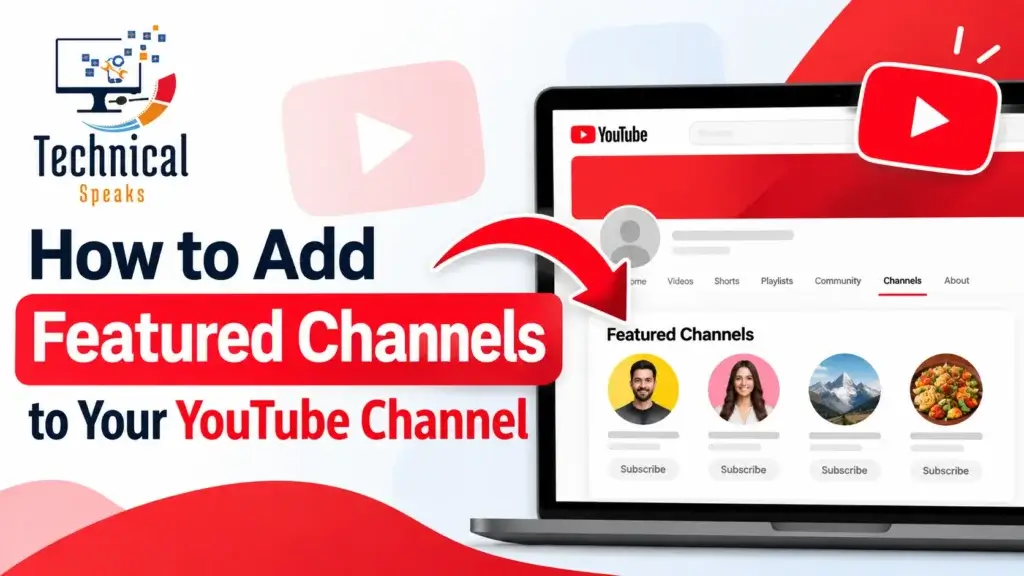
To add featured channels on YouTube, open YouTube Studio on a computer. Go to Customization → Layout, then under Featured sections click Add section → Featured channels. Choose the channels you want to show, give the section a clear name and click Publish.
It takes about two minutes. It’s also one of the easiest ways to send viewers to your other channels or to creators you trust.
What are featured channels on YouTube?
Featured channels are a section on your channel’s home page that shows a row of other channels. Viewers can click straight through to them or subscribe without leaving your page.
People usually feature:
- Their own other channels, such as a Shorts channel, a second-language channel or a livestream archive.
- Collaborators and partners they regularly work with.
- Creators they recommend to their audience.
There are two similar section types in YouTube Studio. They’re easy to mix up:
| Section type | What it shows |
|---|---|
| Featured channels | Channels you choose by hand |
| Subscriptions | Channels you’re subscribed to (only if your subscriptions are public) |
For most creators, Featured channels is the better choice, because you control exactly who appears.
How to add featured channels on desktop
- Go to studio.youtube.com and sign in.
- In the left menu, click Customization.
- Open the Layout tab.
- Scroll to Featured sections and click Add section.
- Select Featured channels.
- Give the section a title, such as “My Other Channels” or “Creators I Recommend.”
- Search for and add the channels you want to feature.
- Drag the section up or down to set its position on your home page.
- Click Publish.
(Add a screenshot of the Add section menu here, with alt text like “Add featured channels section in YouTube Studio.”)
Can you add featured channels on mobile?
Channel layout options in the YouTube and YouTube Studio apps are more limited than on desktop, and they change from time to time. If you don’t see Add section or Featured channels in the app, open studio.youtube.com in a desktop browser, or use your phone’s browser in desktop mode.
How to edit or remove featured channels
- Edit: go to Customization → Layout, find your featured channels section and click the three-dot menu next to it to change the title or the channels.
- Remove a channel: open the section and click the X next to that channel.
- Remove the whole section: use the three-dot menu and choose Remove section.
- Click Publish after any change.
Best practices for featured channels
- Keep it relevant. Feature channels your viewers would actually enjoy. A cooking channel featuring a gaming channel just confuses people.
- Lead with your own channels. If you run a Shorts or clips channel, that’s the most useful thing to feature.
- Stick to a few. Three to six channels is usually easy to scan. A long list gets ignored.
- Name the section clearly. “Watch Our Shorts” tells viewers more than “Channels.”
- Feature active channels. A channel that hasn’t posted in two years makes your page look stale.
- Swap in collaborators. Featuring each other’s channels after a collab is a simple way to share audiences.
- Review it every few months. Remove inactive channels and add new partners.
Featured channels not showing? Common fixes
| Problem | Likely cause | Fix |
|---|---|---|
| No “Featured channels” option | You’re using the mobile app | Use YouTube Studio in a desktop browser |
| Section appears empty | The featured channels are private, terminated or have no public videos | Feature public, active channels |
| Subscriptions section is empty | Your subscriptions are set to private | Make them public, or use Featured channels instead |
| Changes don’t appear | Changes weren’t published, or the page is cached | Click Publish, then check in an incognito window |
| Can’t move the section higher | Some layout items, like the channel trailer, stay fixed | Place it right below the fixed items |
Do featured channels help your channel grow?
They help in a modest way. YouTube hasn’t said featured channels affect recommendations, so think of them as a signpost on your home page, not a ranking factor. Most viewers watch through search, Home and suggested videos rather than visiting your channel page.
That’s why the strongest cross-promotion usually happens inside your videos:
- End screens pointing to your other channel or a related video.
- Cards during the video at the moment you mention a topic.
- Pinned comments with a link to the other channel.
- Collaborations, where you appear on each other’s channels.
- Related video links on Shorts, which send Shorts viewers to a full video.
Use featured channels to tidy up your channel page, and use these tools to actually move viewers around. For the bigger picture, see our guide to YouTube SEO and our tips to increase YouTube views.
Example: setting up featured channels for a creator with three channels
Say you run a main channel with weekly tutorials, a Shorts channel and a livestream archive. You also collaborate with two creators in your niche.
- In YouTube Studio, go to Customization → Layout → Add section → Featured channels.
- Name it “More From Me.”
- Add your Shorts channel and your livestream archive.
- Add a second Featured channels section called “Creators I Recommend,” with your two collaborators.
- Place “More From Me” near the top, below your trailer and latest uploads.
- Publish, then check your other channels’ analytics over the next few weeks to see whether traffic from your main channel grows.
Getting more from your channel page
Featured channels work best when the rest of the channel is in good shape:
- Titles and descriptions built around the right YouTube keywords.
- Thumbnails that earn the click. Here’s why click-through rate matters, plus our image SEO tips for better visuals.
- Regular uploads. An AI-powered content workflow can help you keep up without cutting corners.
- Monetization planning, once you’re growing. See our guide to making money on YouTube.
YouTube videos also show up more and more in Google results and AI answers. Learn how AI answer engines choose sources, and what’s changing in SEO trends 2026.
FAQ
How do I add featured channels on YouTube?
In YouTube Studio on desktop, go to Customization → Layout → Add section → Featured channels, choose your channels, name the section and click Publish.
How many featured channels can I add?
YouTube allows a long list, but three to six usually works best. You can also create more than one Featured channels section with different titles.
Why can’t I find the featured channels option?
Most often it’s because you’re using the mobile app. Switch to YouTube Studio in a desktop browser.
Do featured channels help with YouTube rankings?
There’s no evidence they affect rankings directly. They help viewers who visit your channel page discover your other channels and partners.
Can I feature a channel without its permission?
Yes, you can feature any public channel. For collaborators, it’s still good manners to let them know, and many will return the favor.
Final thoughts
Adding featured channels on YouTube is quick, free and easy to change. Feature a few relevant, active channels, name the section clearly and review it now and then. Then pair it with end screens, cards and collaborations for real cross-promotion.
Need help growing your YouTube channel? Get in touch with our team today.
Saurabh K. has been working in SEO and digital marketing for 10+ years, helping businesses grow their search traffic.