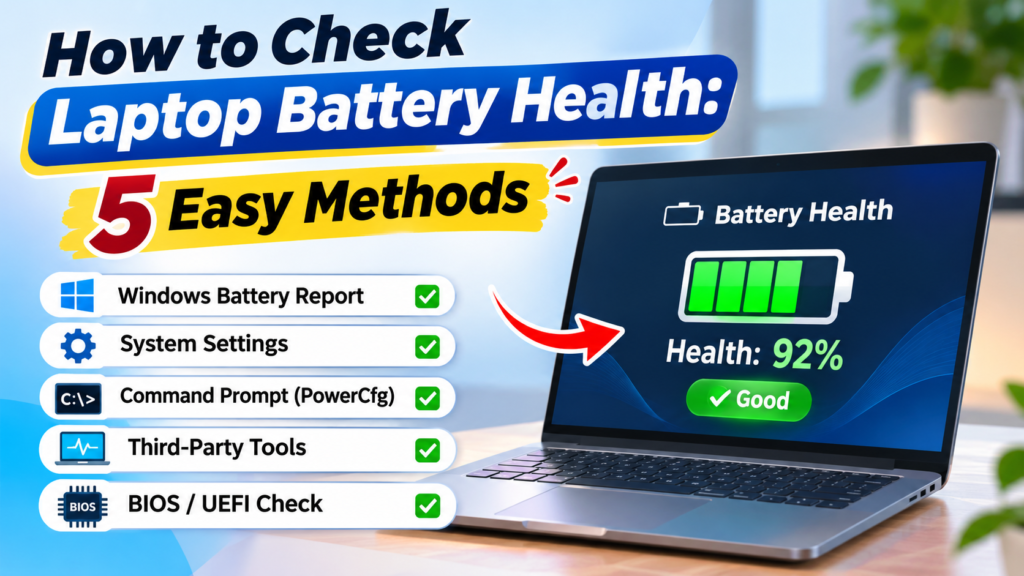
Your laptop’s battery is its lifeline, but like all lithium-ion components, it degrades silently over time. If you have noticed your device barely making it through a two-hour meeting or shutting down abruptly at 20%, it is time to stop guessing. Learning how to check laptop battery health is the first step toward avoiding unexpected downtime and costly replacements. That said, your battery is not the only component worth monitoring — just as you learn how to check SSD health to protect your data, checking your battery regularly safeguards your productivity. Whether you are a Windows power user or a Mac enthusiast, you do not need to be a technician to uncover the truth about your battery’s capacity. In this guide, we will walk through five straightforward methods to diagnose your battery, interpret the results, and decide whether it is time for a replacement.
What Is Laptop Battery Health?
Laptop battery health is a measure of how much charge a battery can hold compared to when it was brand new. It is typically expressed as a percentage derived from the ratio of the Full Charge Capacity (the maximum charge it can hold now) to the Design Capacity (the original specification) . A battery with 100% health is performing at its original factory specification, while a battery at 50% health can only hold half of its original charge. This degradation is a natural chemical process that occurs as the battery undergoes charge cycles over months and years of use.
Why Is Laptop Battery Health Important?
Monitoring your battery’s condition is not just about convenience; it is about safety and performance. A degraded battery can lead to unexpected data loss when your laptop dies without warning. Furthermore, a failing battery often struggles to deliver the stable voltage required during high-performance tasks, which can cause the system to throttle performance or shut down entirely to prevent damage . More critically, ignoring severe battery health issues can lead to physical swelling. A swollen battery can warp your trackpad or chassis and, in rare cases, pose a fire hazard . Knowing your battery’s status allows you to plan for a replacement on your terms rather than being forced into an emergency repair.
Benefits of Checking Battery Health
There are several tangible benefits to running a regular battery diagnostic. Firstly, knowing how to check laptop battery health provides objective data for decision-making. Instead of relying on a vague feeling that “the battery drains fast,” you get a precise percentage that tells you if you need a replacement. Secondly, it can save you money. By identifying a failing battery early, you can replace it before it damages other components or leaves you stranded without power during critical work. Finally, it helps you adjust your usage habits. Understanding how your actions (like keeping the laptop plugged in at 100% all the time) affect long-term health encourages better charging practices, potentially extending the life of your current battery.
Signs You Need to Check Battery Health
While running a diagnostic is always a good idea, certain red flags demand immediate attention. If your laptop dies suddenly while the battery indicator still shows 20% or 30% remaining, the battery cells are likely out of balance or severely degraded . Rapid draining—where a full charge lasts under an hour—is another obvious sign. Physically, if you notice the trackpad bulging or the chassis not sitting flat on a table, stop using the laptop immediately and check for a swollen battery . Finally, if the operating system displays a “Service Recommended” or “Plugged in, not charging” warning, the battery management system has already detected a critical failure.
How Does Battery Health Checking Work?
Checking battery health involves comparing the battery’s original design specifications with its current real-world capabilities. Much like learning how to check SSD health, this process relies on reading diagnostic data rather than guesswork. Modern laptops use a battery management controller that tracks energy in and out. When you run a diagnostic (via a command line or a system report), you are asking the system to read those controller logs. The key metric is the cycle count—the number of full discharge-charge cycles the battery has completed. Most modern laptop batteries are designed to retain about 80% of their capacity for 300 to 1000 cycles, depending on the manufacturer. By comparing the current full-charge capacity to the design capacity, the software calculates a health percentage.
Best Practices / Tips
To get the most accurate reading and extend your battery’s lifespan, follow these practices. Calibrate occasionally. If your battery readings seem erratic, fully discharge the battery to 0% and charge it uninterrupted to 100% to reset the gauge . Avoid extreme heat. Heat is the number one enemy of lithium-ion batteries; keep your laptop on hard surfaces and away from direct sunlight . Enable battery care modes. Many modern laptops (like Lenovo, Dell, and ASUS) have a “Conservation Mode” or “Battery Limit” that stops charging at 60% or 80% when plugged in for long periods. Using this feature when you are desk-bound can significantly slow degradation . Do not routinely run it to zero. While occasional calibration is fine, deep discharges to 0% on a daily basis put unnecessary stress on the cells .

Common Mistakes to Avoid
One of the most common mistakes is ignoring the warning signs until failure. Waiting for a battery to swell or die completely can damage your laptop’s motherboard or cause a safety incident. Another mistake is using third-party “battery booster” software that claims to revive dead cells; these are often placebo or malware and cannot reverse chemical degradation. Finally, leaving a laptop plugged in at 100% constantly in a hot room is a recipe for rapid aging. If you use your laptop as a desktop replacement, remove the battery (if removable) or use the manufacturer’s charge-limiting software to keep the battery in its sweet spot (around 50-60%) .
How to Choose the Right Service
If your diagnostic reveals that your battery health is below 80% and you are experiencing runtime issues, it is time for a replacement. When choosing a service, prioritize authorized service centers for in-warranty devices to ensure you receive genuine parts. For out-of-warranty laptops, look for repair shops that offer warranty on the replacement battery and use OEM or high-quality third-party cells. Avoid the cheapest online batteries, as they often exaggerate capacity and lack safety circuitry. If you are tech-savvy, you can buy a reputable replacement kit and do it yourself, but always check iFixit or official service manuals for your specific model to avoid damaging the chassis clips or delicate ribbon cables.
Frequently Asked Questions (FAQs)
Can I reset my battery cycle count?
No. The cycle count is stored in the battery’s hardware controller and is a permanent log. The only way to “reset” it to zero is to replace the battery with a new one .
At what percentage should I replace my laptop battery?
Most manufacturers recommend replacing the battery when health drops below 80% . However, if you are mostly plugged in and the runtime still meets your needs, you can wait longer. Replace immediately if you see swelling.
Why does my laptop say “Plugged in, not charging”?
This usually indicates the battery has reached a charge limit set by the manufacturer (like 80%) to preserve longevity, or the battery has degraded to a point where it can no longer accept a charge . Check your manufacturer’s power settings first.
Does keeping my laptop plugged in ruin the battery?
It can accelerate wear if it stays at 100% and gets hot. Use the manufacturer’s battery limiter feature (e.g., set it to 80%) if you primarily use it plugged in .
Conclusion
Taking a few minutes to check your laptop battery health empowers you to take control of your device’s reliability. Whether you use the built-in Windows command line, check the macOS system settings, or use a manufacturer-specific utility, the data you gain is invaluable. Remember that a healthy battery is not just about runtime—it is about safety and performance. By following the best practices outlined above and knowing when to seek a professional replacement, you can ensure your laptop remains a dependable tool for years to come. Do not wait for the unexpected shutdown; run a check today.