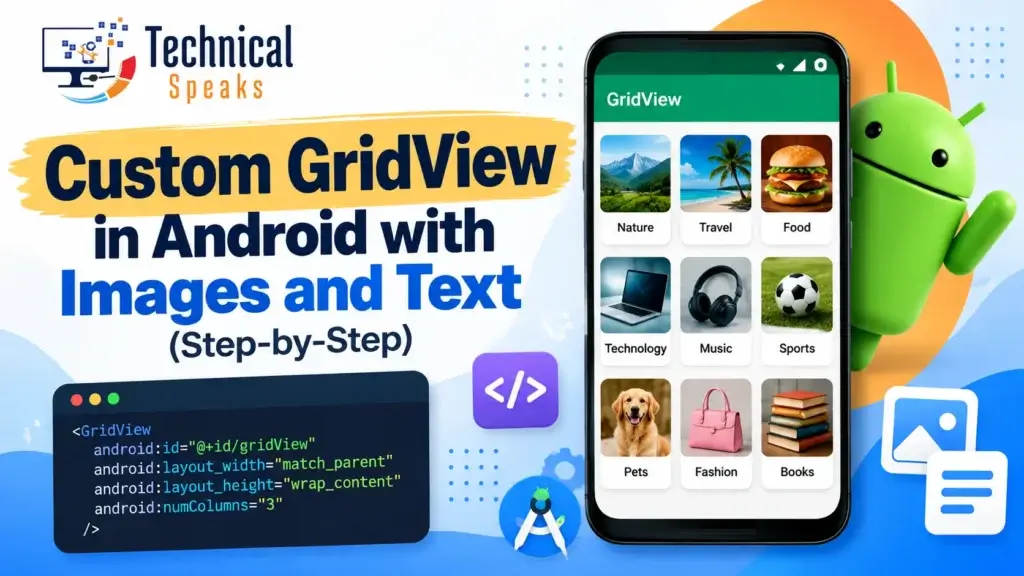
A custom GridView in Android shows items in rows and columns, with your own layout for each item, such as an image with a title under it. You need four pieces: a GridView in your activity layout, a layout file for one grid item, an adapter that fills each item with data, and a few lines in your activity to connect them.
In this tutorial we’ll build a sports grid with six images and titles, add click handling, and show the same thing in Kotlin. At the end we’ll look at RecyclerView, the more flexible modern alternative.
What you need: Android Studio (here’s how to install Android Studio) and six images in res/drawable. Ours are named cricket, basketball, football, hockey, baseball and tennis.
What is a GridView in Android?
GridView is a view group that shows items in a scrollable two-dimensional grid. You set the number of columns, and it creates the rows for you as needed. It gets its items from an adapter, the same way a ListView does. If you’ve built our custom ListView in Android Studio, this will feel familiar.
Step 1: Create a new project
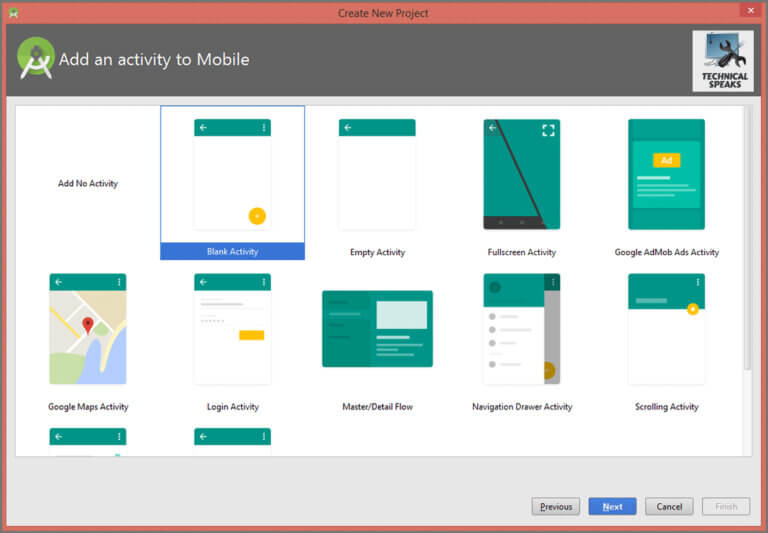
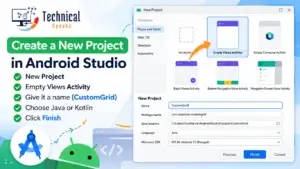
Open Android Studio, choose New Project → Empty Views Activity, give it a name (we use CustomGrid), pick Java or Kotlin, and click Finish. New to activities? Read what activities are in Android Studio first.
Step 2: Add the GridView to activity_main.xml
Open res/layout/activity_main.xml and replace its content with:
<?xml version="1.0" encoding="utf-8"?>
<GridView xmlns:android="http://schemas.android.com/apk/res/android"
    android:id="@+id/grid"
    android:layout_width="match_parent"
    android:layout_height="match_parent"
    android:padding="8dp"
    android:numColumns="3"
    android:horizontalSpacing="8dp"
    android:verticalSpacing="8dp"
    android:stretchMode="columnWidth"
android:gravity="center" />numColumnssets the number of columns. Useauto_fitwithcolumnWidthif you want it to adjust to screen size.horizontalSpacingandverticalSpacingadd space between items.stretchMode="columnWidth"spreads columns evenly across the screen.
Step 3: Create the grid item layout
Right-click res/layout, choose New → Layout Resource File, and name it grid_item.xml. Each item is an image with a title under it:
<?xml version="1.0" encoding="utf-8"?>
<LinearLayout xmlns:android="http://schemas.android.com/apk/res/android"
    android:layout_width="match_parent"
    android:layout_height="wrap_content"
    android:orientation="vertical"
    android:gravity="center_horizontal"
    android:padding="4dp">

    <ImageView
        android:id="@+id/imageView"
        android:layout_width="match_parent"
        android:layout_height="100dp"
        android:scaleType="centerCrop"
        android:contentDescription="@null" />

    <TextView
        android:id="@+id/textView"
        android:layout_width="wrap_content"
        android:layout_height="wrap_content"
        android:layout_marginTop="6dp"
        android:textSize="14sp"
        android:textStyle="bold" />
</LinearLayout>
A vertical LinearLayout keeps the title under the image on every screen size, with no hard-coded margins.
Step 4: Create the adapter
The adapter is the bridge between your data and the grid. It tells the GridView how many items there are and builds the view for each one.
Create a new Java class called GridAdapter:
package com.example.customgrid;

import android.content.Context;
import android.view.LayoutInflater;
import android.view.View;
import android.view.ViewGroup;
import android.widget.BaseAdapter;
import android.widget.ImageView;
import android.widget.TextView;

public class GridAdapter extends BaseAdapter {

    private final Context context;
    private final int[] images;
    private final String[] titles;

    public GridAdapter(Context context, int[] images, String[] titles) {
        this.context = context;
        this.images = images;
        this.titles = titles;
    }

    @Override
    public int getCount() {
        return titles.length;
    }

    @Override
    public Object getItem(int position) {
        return titles[position];
    }

    @Override
    public long getItemId(int position) {
        return position;
    }

    @Override
    public View getView(int position, View convertView, ViewGroup parent) {
        ViewHolder holder;

        if (convertView == null) {
            convertView = LayoutInflater.from(context)
                    .inflate(R.layout.grid_item, parent, false);
            holder = new ViewHolder();
            holder.image = convertView.findViewById(R.id.imageView);
            holder.title = convertView.findViewById(R.id.textView);
            convertView.setTag(holder);
        } else {
            holder = (ViewHolder) convertView.getTag();
        }

        holder.image.setImageResource(images[position]);
        holder.title.setText(titles[position]);
        return convertView;
    }

    private static class ViewHolder {
        ImageView image;
        TextView title;
    }
}
Why this version is better than the basic one you’ll see in many tutorials:
- It reuses views.
convertViewis only inflated when it’snull. When you scroll, Android hands back views that went off screen, so the grid stays smooth. - ViewHolder saves the
findViewByIdcalls, so they run once per view, not on every scroll. inflate(..., parent, false)keeps the layout parameters fromgrid_item.xml. Passingnulldrops them.getItemandgetItemIdreturn real values, which you need for click handling.
Replace com.example.customgrid with your own package name.
Step 5: Connect it in MainActivity
package com.example.customgrid;

import android.os.Bundle;
import android.widget.GridView;
import android.widget.Toast;
import androidx.appcompat.app.AppCompatActivity;

public class MainActivity extends AppCompatActivity {

    private final int[] images = {
            R.drawable.cricket, R.drawable.basketball, R.drawable.football,
            R.drawable.hockey, R.drawable.baseball, R.drawable.tennis
    };

    private final String[] titles = {
            "Cricket", "Basketball", "Football", "Hockey", "Baseball", "Tennis"
    };

    @Override
    protected void onCreate(Bundle savedInstanceState) {
        super.onCreate(savedInstanceState);
        setContentView(R.layout.activity_main);

        GridView gridView = findViewById(R.id.grid);
        gridView.setAdapter(new GridAdapter(this, images, titles));

        gridView.setOnItemClickListener((parent, view, position, id) ->
                Toast.makeText(this, "You clicked " + titles[position],
                        Toast.LENGTH_SHORT).show());
    }
}
Run the app and you’ll see a three-column grid of sports. Tap any item to see its name in a toast. OnItemClickListener is a Java interface. If that’s new to you, see what an interface is in Java.
[Keep the existing result screenshots here]
The same adapter in Kotlin
Google recommends Kotlin for new Android apps. Here’s the same grid in Kotlin:
class GridAdapter(
    private val context: Context,
    private val images: IntArray,
    private val titles: Array<String>
) : BaseAdapter() {

    override fun getCount() = titles.size
    override fun getItem(position: Int) = titles[position]
    override fun getItemId(position: Int) = position.toLong()

    override fun getView(position: Int, convertView: View?, parent: ViewGroup): View {
        val view: View
        val holder: ViewHolder

        if (convertView == null) {
            view = LayoutInflater.from(context).inflate(R.layout.grid_item, parent, false)
            holder = ViewHolder(view.findViewById(R.id.imageView), view.findViewById(R.id.textView))
            view.tag = holder
        } else {
            view = convertView
            holder = view.tag as ViewHolder
        }

        holder.image.setImageResource(images[position])
        holder.title.text = titles[position]
        return view
    }

    private class ViewHolder(val image: ImageView, val title: TextView)
}
class MainActivity : AppCompatActivity() {
private val images = intArrayOf(
R.drawable.cricket, R.drawable.basketball, R.drawable.football,
R.drawable.hockey, R.drawable.baseball, R.drawable.tennis
)
private val titles = arrayOf("Cricket", "Basketball", "Football", "Hockey", "Baseball", "Tennis")
override fun onCreate(savedInstanceState: Bundle?) {
super.onCreate(savedInstanceState)
setContentView(R.layout.activity_main)
val gridView = findViewById<GridView>(R.id.grid)
gridView.adapter = GridAdapter(this, images, titles)
gridView.setOnItemClickListener { _, _, position, _ ->
Toast.makeText(this, "You clicked ${titles[position]}", Toast.LENGTH_SHORT).show()
}
}
}GridView vs RecyclerView: which should you use?
GridView still works and is fine for small, simple grids. For new apps, most developers use RecyclerView with a GridLayoutManager, because it’s more flexible and is the approach Android’s docs recommend for scrolling lists (Create dynamic lists with RecyclerView).
| GridView | RecyclerView + GridLayoutManager | |
|---|---|---|
| View reuse | Manual (convertView, ViewHolder) | Built in, ViewHolder required |
| Item animations | No | Yes |
| Different item sizes and spans | Limited | Yes, with setSpanSizeLookup |
| Click handling | setOnItemClickListener | You add it in the adapter |
| Best for | Small, simple grids and learning | Most production apps |
Switching the grid part is one line:
recyclerView.setLayoutManager(new GridLayoutManager(this, 3));If your app uses Jetpack Compose, the Compose equivalent is LazyVerticalGrid (Lazy grids).
Common errors and fixes
- The app crashes with a
NullPointerExceptioningetView. Check that the IDs ingrid_item.xml(imageView,textView) match the ones in your adapter. - XML errors after copying code from a website. Look for curly quotes (“ ”). Android Studio only accepts straight quotes (“).
- Items overlap or look squashed. Use
wrap_contentheight on the item’s root layout and set the spacing on the GridView. - Images don’t show. Make sure the files are in
res/drawablewith lowercase names and no spaces or hyphens. - Clicks don’t work. If your item has a
ButtonorCheckBox, it can take focus. Addandroid:focusable="false"to it. - Scrolling is slow. You’re probably inflating a new view every time. Use the
convertViewcheck and ViewHolder shown above.
Watch the video tutorial
FAQ
What is GridView in Android?
GridView is a view group that shows items in a scrollable grid of rows and columns. It gets its items from an adapter.
How do I show images and text in a GridView?
Create a custom item layout with an ImageView and a TextView, then use a custom adapter that extends BaseAdapter to set the image and text for each position.
How do I handle clicks on GridView items?
Call gridView.setOnItemClickListener() and use the position value to find which item was tapped.
How do I change the number of columns?
Set android:numColumns in XML, or call gridView.setNumColumns() in code. Use auto_fit with columnWidth to adjust the columns to screen size.
Is GridView deprecated?
No, GridView isn’t deprecated. For new apps, most developers prefer RecyclerView with GridLayoutManager, or LazyVerticalGrid in Jetpack Compose, because they’re more flexible.
What’s the difference between GridView and ListView?
A ListView shows items in one vertical column. A GridView shows them in several columns. Both use adapters in the same way.
Final thoughts
A custom GridView comes down to four parts: the GridView, an item layout, an adapter and the activity code. Reuse views with convertView and a ViewHolder, add a click listener, and you have a smooth, working grid. Once you’re comfortable, try the RecyclerView version for more control.
Want to keep building? Next, try our tutorials on the spinner in Android Studio and search view in Android.
Need help building your app? Get in touch with our team today.
Saurabh K. is a developer who writes practical, beginner-friendly coding tutorials.